UKOUG PeopleSoft Conference July 7, 2011
Posted by Duncan in UKOUG.comments closed
It’s been a couple of weeks since the PeopleSoft conference so this is about as late as I can leave it for writing a summary of events before I start to forget things.
First of all, go and check out Graham’s post. Graham is the chairman of the Tech stream and he’s posted his take on the conference and the slide deck from his session on Query in Tools 8.5x.
So what did I learn? Well aside from the items that Graham has already mentioned, my key take-aways from the sessions were these:
- We should be using the Reporting Console more. Steve Smith and his colleagues from Cambridge Uni have given it a thorough inspection and declared it a really useful piece of functionality (they also showed the customisations they made before putting it live).
- Tools 8.52 brings a new search bar. By allowing users to search for the employee they want first, and then choose the related action to perform on the data it should mean that there’s a lot less use of the menu for navigation.
- Application Data Sets are going to make moving config/setup data around much easier
There was also some great discussion around the usage of some of the new pieces of functionality, particularly:
- the Test Framework (PTF) – Areas where it is useful, and areas where it needs workarounds while we wait for improvements in the next version of Tools. The biggest drawback currently is that it the data values that it inserts are static, whereas other Tools (JMeter, The Grinder) can take a spreadsheet or database as input. It’s also not a performance testing tool.
- the Forms/Workflow functionality – As a Succeed employee this is a little annoying as we’ve been selling a tool that fills the same gap that this is aimed at for a while. To be truthful it’s too early a version of the product to see how it measures up though, maybe in Tools 8.52 we’ll see a little more.
I also presented a couple of sessions. I’ve upload the first one “PeopleSoft and The Cloud” to Slideshare:
The second “Monitoring and Automating PeopleSoft with Open Source Tools” will follow shortly.
UKOUG PeopleSoft Conference 2011 June 20, 2011
Posted by Duncan in PeopleTools.Tags: Conference, UKOUG
comments closed
I’m looking forward to the UK PeopleSoft Conference on Wednesday and Thursday of this week.

If you’re UK based and work with PeopleSoft then there’ll be something for you there. This year there are 4 streams, the usual three of Tech, HR and Financials, plus a new Global Payroll stream, and all 4 are full of content.
The agenda is available here, but in the Tech stream there’s lots to grab the interest. I’ll be spending most of my time in the Tech stream where we have sessions on some of the new features for those interested in Tools 8.5x (Reporting Console, Web Services, Test Framework) and some other sessions that apply to older versions of PeopleTools too (Archiving, Query, Batch Scheduling).
I’ll also be giving a couple of sessions myself. The first is “Case Study: How using ‘The Cloud’ accelerated Pret’s PeopleSoft project”, where I’ll walk through how we used Amazon EC2 to dramatically speed-up/improve Pret a Manger’s PeopleSoft implementation. I’m also doing a joint session with a very smart colleague of mine – Simon Wilson … I’ll be talking about “Automating and Monitoring PeopleSoft using Open Source Tools” and Simon will be showing his solution for “Comparing and Syncronising Config between Environments”.
Although there’s some great content, that’s only half of the value of attending. It’s also awesome to meet like-minded peers to discuss what’s happening at different customers and hear the great things that they’re doing.
Looking forward to it!
OpenWorld 11 / Suggest a Session on Oracle Mix June 9, 2011
Posted by Duncan in OOW.comments closed
I’ve never been to OpenWorld and I’d love to go. There are so many US based PeopleSoft people that I’d love to meet.
I noticed the ‘Suggest a Session’ post on the Oracle Mix blog and thought I’d give it a go. I’d be petrified at the thought of talking to an audience the size that you get over there, but sometimes you have to try these things.
I’m a bit late to the game, but if anyone fancies either of the topics I’ve put forward I’d appreciate a vote:
Case Study: Deliver engaging Self Service with an additional PeopleSoft portal
Join me for a Case Study of how a green-field PeopleSoft retail client in the UK used HR9.1 and PeopleTools 8.50 to turbo-charge the user experience of their Employee and Manager Self Service users. This will be a demo intensive session as I walk through the steps to deployment and show how you can deliver a genuinely engaging interface for your employees without needing products from outside the Oracle stable. The retail client is live in the UK and coming to the US soon!
Case Study: How The Cloud accelerated the PeopleSoft project of a UK retailer
Join me for a walk-through of how we used ‘the Cloud’ to dramatically speed-up the PeopleSoft implementation for a greenfield UK retailer. This isn’t another “theoretical cloud talk”, I’ll detail how it worked in practise. It improved our access requirements, reduced infrastructure costs and gave us access to more powerful servers and greater resilience than we’d otherwise have been able to afford. I’ll walk you through the initial decision, explain how everything was set up and demonstrate the benefits delivered to the project. I’ll also describe other occasions where the flexibility of PeopleSoft in the cloud has been invaluable.
Click on the headers to go to the voting page (you’ll need to sign-up for Mix if you don’t already have an account).
Thank you!
Restrict external access to PeopleSoft with Squid June 8, 2011
Posted by Duncan in Infrastructure, PeopleSoft.comments closed
I recently had to expose a client’s PeopleSoft installation to the outside world, which I did in the usual manner (additional PIA in the DMZ etc).
We wanted to use the “closed by default, open by exception” approach, so we would start by blocking access to everything and then open the areas we needed access to URL by URL. I suspected that the final ‘URL Whitelist’ might take many iterations to get right and as the Reverse Proxy in the DMZ was outside of my control I needed to trial it somewhere else first.
I commandeered one of our less frequently used environments and went about searching for a quick/free method of blocking access. After trying a few different approaches I settled on Squid, the open-source forward-proxy / web-caching server. Although it’s better known for running on Unix systems, there is a Windows implementation and it can operate perfectly well as a reverse-proxy.
Setting up Squid
Once I’d downloaded and unzipped the binaries, and installed it as a service (using this helpful write-up as a guide) it was just a case of setting the rules.
In the ACLs section I added my bad and good URLs:
acl bad_url urlpath_regex *DEV*
acl good_url urlpath_regex "c:\squid\etc\good-urls.squid"
This would block any URL with DEV in (my chosen environment was DEV), but then allow any URLs in the ‘good-urls.squid’ file. I then had specify in the http_access section what to do with these ACL groups.
http_access allow good_url
http_access deny bad_url
http_access allow all
It took me a few goes to get this right as the last line confused me for a while, but luckily there are copious notes in the provided .conf file:
If none of the “access” lines cause a match, the default is the opposite of the last line in the list. If the last line was deny, the default is allow. Conversely, if the last line is allow, the default will be deny.
I was happy leaving my PeopleSoft environment on port 80 and Squid on 3128 as this is just a temporary setup for my testing. Obviously Squid would be on port 80 if this was a production setup.
I amended the default port line thus:
http_port 3128 defaultsite=xxx.yyy.com
(where xxx is the hostname and yyy is the domain name)
And finally I added this line:
cache_peer 127.0.0.1 parent 80 0 originserver default
I used 127.0.0.1 as Squid is on the same host as the PIA, and the rest is for forwarding.
Setup PeopleSoft
In the Web Profile ‘Virtual Addressing’ tab, add the reverse proxy details. This willensure that PeopleSoft uses the reverse-proxy port number. Bounce the PIA.
Custom Error Page
If you want a nice custom ‘Access Denied’ page instead of the default Squid one, they can be found in ‘C:\squid\share\errors\English’. They have no file extension, but they’re HTML so a cinch to amend.
Building up the good-urls.squid file
This is largely going to vary depending upon what you want to expose to the external users. A lot of what we opened up were custom pages so there isn’t a lot of value sharing the full file here. Having said that, here is a snippet of our file:
*login*
*css
*/psp/ps/EMPLOYEE/HRMS/h/*
*/cs/ps/cache/*
*/ps/images/*
*/psc/ps/*viewattach*
*/psp/ps/EMPLOYEE/HRMS/c/ROLE_EMPLOYEE.GP_SS_EE_PSLP.GBL*
*/ps/ckeditor/*
*/psc/ps/EMPLOYEE/HRMS/c/HRS_HRAM.HRS_CE.GBL*
*/psp/ps/EMPLOYEE/HRMS/c/HRS_HRAM.HRS_CE.GBL*
*/psc/ps/EMPLOYEE/HRMS/s/WEBLIB_TIMEOUT.PT_TIMEOUTWARNING.FieldFormula.IScript_TIMEOUTWARNING
*/psc/ps/EMPLOYEE/HRMS/\?cmd=expire
*/psp/ps/EMPLOYEE/HRMS/\?cmd=expire
*/psp/ps/EMPLOYEE/HRMS/\?cmd=logout
Lines 1 and 2 sort out the signon page.
Line 3 is the Employee Portal homepage.
Lines 4 and 5 are for images. Lines 6 and 8 are for viewing attachments and the Rich Text editor.
Lines 7, 9 and 10 are sample PeopleSoft pages/components.
The remainder deal with the timeout and signout links.
(Assuming that your PIA site is ‘ps’)
Gotchas
And you’re done. There are a few little quirks to note.
Firstly, every time you change your URLs file you’ll need to restart the Squid service, but it’s a quick process so doesn’t hold you up too much.
Secondly, PeopleSoft frequently uses the ‘?’ special character as a URL delimiter so Squid only matches against the characters before this point. There are several occasions when you need to match against the full URL which is why I’ve used url_path_regex in the ACL section above. This allowed me to escape the special characters so that the log-out, time-out and view attachment links work ok.
Changing the Favicon in PeopleSoft – The “How to” May 12, 2011
Posted by Duncan in PeopleTools.comments closed
Last week I posted a blog entry highlighting why I think adding a favicon to PeopleSoft can be a helpful visual aid for your users. This post walks through how I did it – note: I’ve only tested this in Tools 8.50.
Step 1 – Create your icons
It’s probably a good idea to have one for each environment excluding Production that shows the environment name, and then have Production as the corporate logo (or your PeopleSoft system logo etc). I created my 32×32 pixel images in GIMP as it can save as a .ico file, but any graphics package will do (as will this online ico creator). I didn’t experiment with other sizes or file formats, let me know if you do and I’ll update the post.
Upload your icons as images in App Designer.
Step 2 – Create a Function to return your Favicon
We need to create a function to provide the correct image for each environment as we’ll be calling this from more than one place. I added my function to WEBLIB_PT_NAV.ISCRIPT1 as we’ll be customising it later anyway.
Function GetFavicon() Returns string

   Local string &Favicon;
   Evaluate %DbName
   When = "DEV"
      &Favicon = %Response.GetImageURL(Image.<<DEV_IMAGE>>);
      Break;
   When = "TST"
      &Favicon = %Response.GetImageURL(Image.<<TST_IMAGE>>);
      Break;
   ...etc...
   End-Evaluate;

   &Favicon = "<link href=""" | &Favicon | """ rel=""shortcut icon"" type=""image/x-icon"" />";
   Return &Favicon;
End-Function;
Step 3 – Amend the HTML Definitions
You need to amend both PT_HNAV_TEMPLATE and PT_IFRAME_HDR_SWAN HTML templates so that the code for the Favicon can be passed in.
Amend PT_HNAV_TEMPLATE thus (I’m just showing the top 6 lines – lines 4 and 5 are the ones I’ve added):
<!DOCTYPE HTML PUBLIC "-//W3C//DTD HTML 4.01//EN" "http://www.w3.org/TR/html4/strict.dtd">
<html dir="%Direction" lang="%LanguageISO">
<head>
<!--Favicon-->
%bind(:23)
<meta http-equiv="X-UA-Compatible" content="IE=8">
...
Amend PT_IFRAME_HDR_SWAN thus (I’m just showing the top 5 lines – lines 3 and 4 are the ones I’ve added):
<head>
<meta http-equiv='content-type' content='text/html; charset=%bind(:1)'>
<!--Favicon-->
%bind(:25)
<link rel="stylesheet" href="%bind(:2)" type="text/css">
...
Note: Your bind numbers may vary. You can check they’re correct when we get to the calling functions shortly.
Step 4 – Pass the Favicon into the HTML templates
The final step is to amend the PeopleCode so that the string provided by our GetFavicon function is passed into our HTML definitions. Open PT_BRANDING.BrandingBase. Scroll down to where the delivered code is declaring functions (it’s around line 155 for me) and declare the function that you created in Step 2.
Next, find method ‘getIframeHeaderHTML’ and scroll down to near the bottom. You’ll see a call to one of the HTML objects that you just amended ‘PT_IFRAME_HDR_SWAN’. Add your function as a parameter to the end thus:
&hdrHTML = GetHTMLText(HTML.PT_IFRAME_HDR_SWAN, &charSet, ... , &hoverNavLoc, GetFavicon());
As a double-check, you should also make sure that it’s the same number parameter as the bind variable that you added in the previous step.
You’ll need to make a similar change for the other HTML template. Open WEBLIB_PT_NAV.ISCRIPT1.FieldFormula and search for the function ‘buildIframeTemplate’. Again, scroll down to the end of the function and add your function as a parameter to the end:
Return GetHTMLText(@("HTML." | &templateHTMLObjName), &charSet, &requiredToolsSS, ... , &ptcxmCollapseImgURL, GetFavicon());
Again, make sure that the parameter number matches the bind number in the HTML file (PT_HNAV_TEMPLATE) earlier.
Testing
You should be able to sign in and see the results immediately. Good luck and let me know how you get on!
Changing the Favicon in PeopleSoft May 5, 2011
Posted by Duncan in PeopleTools.comments closed
A Favicon (short for favorites icon, also known as a shortcut icon, website icon, URL icon, or bookmark icon) is a small logo that appears next to the website URL in the browser address bar. This website has the favicon from WordPress, as that’s the blogging platform that I use.
Although adding a favicon made the web surfing experience marginally more attractive (the favicon also appears in your bookmarks/favourites menu to make it easier to identify each website, for example) it was pretty unimportant to us in the PeopleSoft world. Now that tabbed browsers are starting to proliferate into company workstation rollouts the favicon is starting to become more useful.
As an example, can you identify these 9 favicons from my open browser tabs (I’ve redacted the text from a couple as they’re pretty easy):

I’m quite a fan of finding methods to make it easy to differentiate your PeopleSoft environments. I think it’s a useful productivity tweak to be able to instantly know whether you’re in DEV, TST or PRD without having to check the address bar and parse through the URL (for less technical business users especially).
Wouldn’t it be useful to have a different Favicon for each environment? That way you can easily tell which tab you need. When you’re trying to find a specific environment that you’ve logged into, how useful is it to go from this:
to this:

And with grouped taskbar buttons being the default in recent versions of Windows, it’s also handy to go from this:

to this:
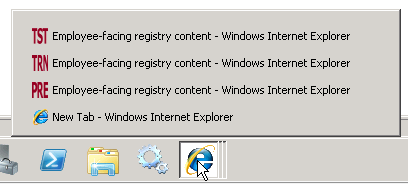
So how is it done?
It’s not a big customisation, although it does obviously touch a couple of Tools objects. I’ve written it up here.
PeopleSoft and IE9 April 14, 2011
Posted by Duncan in Browsers, HTML, PeopleTools 8.50, PeopleTools 8.51.comments closed
It seems that IE9 behaves slightly differently to other browsers when displaying some PeopleSoft pages, and this results in pages that look a little odd. Areas of whitespace appear between page objects, and fields that are nicely laid out in other browsers are mis-aligned in IE9. Strangely it doesn’t happen on the homepage, but it does on every other page.
Here’s an example:
 So what causes it, and what can be done about it?
Custom toolbars on PeopleSoft Rich Text Boxes March 23, 2011
Posted by Duncan in PeopleTools 8.50, PeopleTools 8.51.comments closed
If you’re on Tools 8.50 or 8.51 you’re probably familiar with the new Rich-text edit boxes by now. They allow you to amend the text with formatting, colour, links, images etc. This is how a field looks when the default Rich Text toolbar is applied:
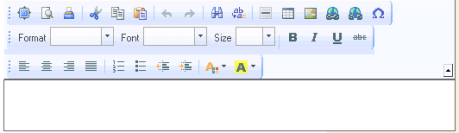 This is all very good when the field is in a nice empty page, where there’s plenty of space for a large toolbar. Many pages have a lot of fields on, and the addition of a bulky toobar might make the page appear busier and more crowded. Also, some users may get confused with the wide choice of buttons available.
I faced a similar issue today. I needed to have the user enter some text and be able to embed links, but because of the design aesthetics of where the results would be output, I wanted to discourage the user from having lots of different colours, font sizes etc. So I wanted to reduce the toolbar so it had just two buttons – add link and remove link.
It turns out that there’s a pretty simple way of customising the toolbar. 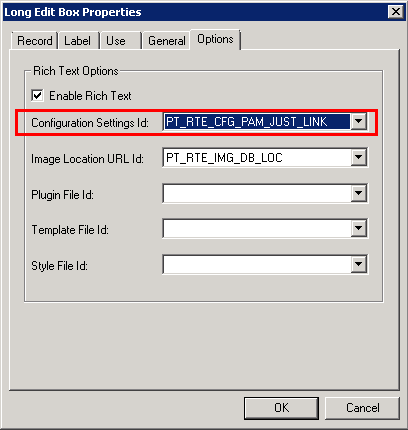 (more…)
Twitter! February 3, 2011
Posted by Duncan in PeopleTools.comments closed
For those that do the whole Web2.0  Social Media thing, I’m now on Twitter. I’d be interested in any recommendations for PeopleSoft people to follow, and if anyone fancies getting in touch on there my username is Duncan_Davies.
Error in Recruitment – Build Applicant Search February 3, 2011
Posted by Duncan in PeopleTools, Recruitment, Troubleshooting, Verity.comments closed
This probably won’t help a great many people, but for the small minority it does help it might save them a lot of time … (more…)


 The PeopleSoft Tipster Blog